
How to Make a Reservation in the Patron Portal
← Back to HomeUse the steps below to reserve equipment through the WebCheckout Patron Portal. If you encounter any issues, please contact the OIT Service Desk
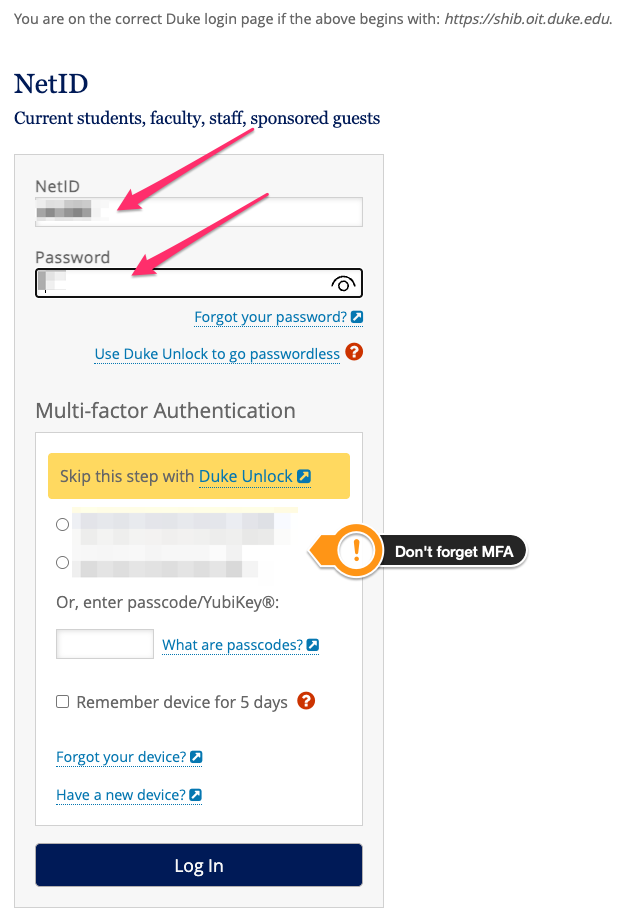
Step 1: Go to the Patron Portal
Visit our Patron Portal and log in with your Duke NetID.
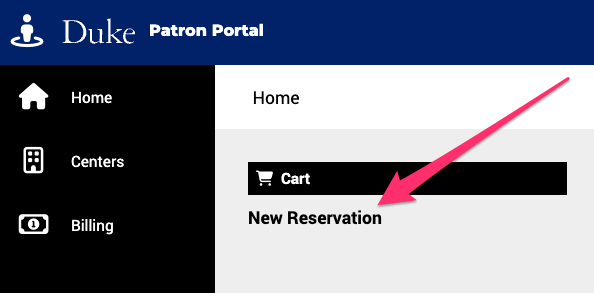
Step 2: Click 'New Reservation'
Click new reservation to start the process and view the catalog
Step 3: Select 'OIT Service Desk at The LINK'
Open the dropdown and choose the checkout center

Step 4: Click 'Dismiss'
Click 'Dismiss' on the MOTD popup

Step 5: Select Times and Browse Catalog
Select the start time/reservation pickup and end time/return time. Each item has its own designation that will be determined at pickup time.

Step 6: Add itmes to catalog
Click the + icon for the items you would like to add to your cart.

Step 6: Correct Errors
Correct any errors. These are usually due to pick up and return times.

Step 6: Looks Good!!!
After errors are corrected, you will see a 'Looks Good'. It means your reservation is ready to process.

Step 6: Reservation Pending
Your reservation is now submitted for processing. You will receive notification when completed or if not available. If completed, arrive on time to pick up your item.
